Text editor
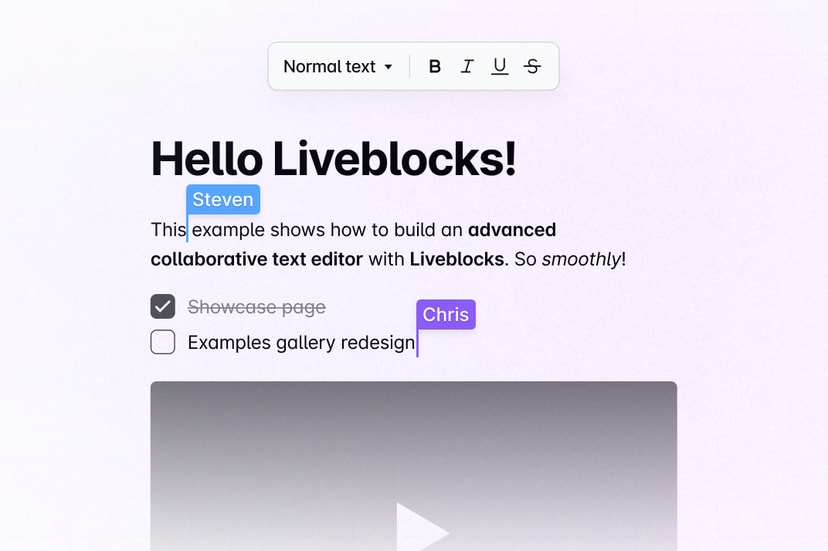
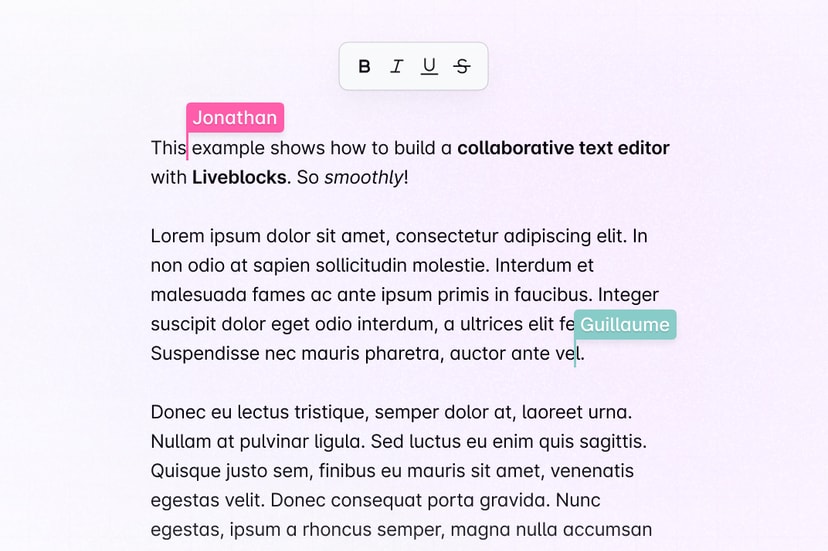
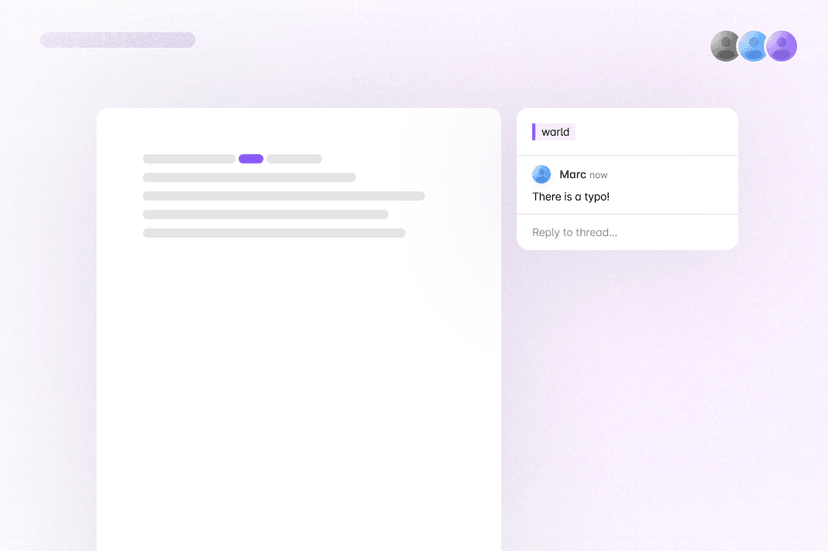
Create a collaborative text editor with Liveblocks, or add collaboration to your existing editor. Enable realtime editing, show live cursors and selections, edit documents with AI, restore previous versions, and add comments and mentions.
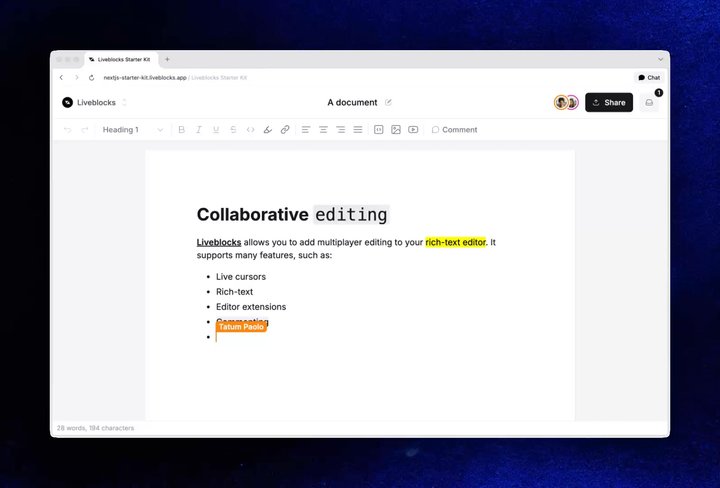
Text editing inside the Next.js Starter Kit
Features
- Realtime collaboration: The document is permanent and updates in realtime for connected users.
- Presence: Show live cursors, selections, avatar stacks, and agent activity.
- Toolbars: Add ready-made fixed and floating formatting toolbars, or create your own.
- Server-side editing: Modify documents from your back end, and watch them update in realtime.
- Agentic editing: Generate and apply text changes with AI agents.
- Version history: Save, preview, and restore documents using manual or automatic snapshots.
- Multiplayer undo/redo: Each user can independently undo and redo their own changes.
- Comments: Attach comment threads to highlighted text and display them inside your editor.
- Mentions and notifications: Tag users inline and notify them in-app or by email.
- Permissions: Control which users can read and edit the document.
Get started
Choose a starting point for your text editor.
Implementation
This is an overview of how each feature can be implemented with
@liveblocks/react-tiptap,
though a number of other editor plugins are available with similar APIs.
Documents are stored in Sync, live selections are
broadcast using Presence, and comment threads
are created using Comments.
Realtime collaboration
Using
useLiveblocksExtension
with
collaborationMode: "liveblocks",
your Tiptap editor stores its text as
LiveText backed by Storage.
The extension translates editor operations into LiveText updates, merging
concurrent edits character-by-character, and every connected user sees changes
in realtime.
Each editor is identified by its
field value,
so you can place multiple editors in one room by giving each a unique field, or
use one room per document. Learn more under
Sync integrations and
Yjs.
Presence
The editor integration automatically displays each user’s caret and text
selection, colored and labeled with the user data returned by
resolveUsers.
To show who’s currently in the document, add the ready-made
AvatarStack component.
You can also create custom avatar stacks and presence UI, learn more under Presence.
Toolbars
Add a formatting toolbar with the ready-made
Toolbar component, or
show one next to selected text with
FloatingToolbar.
Both render sensible defaults, and can be customized with components such as
Toolbar.Button
and
Toolbar.Toggle.
Server-side editing
Because the document lives in Storage, server processes can edit text with
Liveblocks.mutateStorage,
using the same LiveText API
as the client. Connected users see the result in realtime. For example, a server
can append to a LiveText field stored alongside the editor, such as a document
summary.
Learn more under Server-side editing.
Agentic editing
To allow AI agents to modify your document, generate your changes with AI then
use mutateStorage to
apply them. To show that AI is working in your app use
setPresence
to show it working—your agent will appear in Presence alongside
humans. Finally, remove the agent’s presence to indicate that the agent is no
longer working.
Additionally, you can use Feeds to store AI workflow state, and to pass agent status updates to the UI. Learn more under Agentic editing.
Version history
Create version snapshots, manually or automatically, list old versions, and
restore to a specific version. Use
useHistoryVersions
to list versions with the ready-made
HistoryVersionSummaryList
component, then preview and restore a selected version with
HistoryVersionPreview.
Automatic versions can be enabled in the dashboard, and meaningful versions can
be created from a backend with
Liveblocks.createVersionHistorySnapshot,
for example before a large agentic edit. Learn more under
Version history.
Multiplayer undo/redo
The Liveblocks extension ships with its own history handling—each user can
independently undo and redo their own changes without affecting other users’
edits, using the standard keyboard shortcuts or the ready-made
Toolbar.SectionHistory
buttons.
Learn more under Multiplayer undo/redo.
Comments
Using Comments, users can highlight text and attach a
comment thread to it, which stays anchored to the text as the document changes.
FloatingComposer
displays a composer above selected text, and threads retrieved with
useThreads can be displayed
alongside the document with
AnchoredThreads,
or below their highlights with
FloatingThreads.
Learn more under Comments.
Mentions and notifications
Users can tag each other inline by typing @, with suggestions resolved through
resolveMentionSuggestions
on LiveblocksProvider. Mentioned users automatically receive a textMention
inbox notification, which you can display with
useInboxNotifications
and the ready-made
InboxNotification
component.
Unread mentions can also be sent by email using email notifications. Learn more under Notifications.
Permissions
Each document is contained inside a room in your Liveblocks app, and permission
groups can set access to the document. For example, your document may have an
editor group and a viewer group. This can be set when modifying or creating a
room, for example with
Liveblocks.createRoom.
More complex controls can be set too, learn more under Permissions.
Examples
Explore complete implementations in our example gallery.