Spreadsheet
Create a collaborative spreadsheet, table, or data grid with Liveblocks. Synchronize rows, columns, and cell values, show each user’s live selection, and let AI fill in data alongside your users. Get started with an integration, such as Handsontable, AG Grid, or build a custom table using primitives.
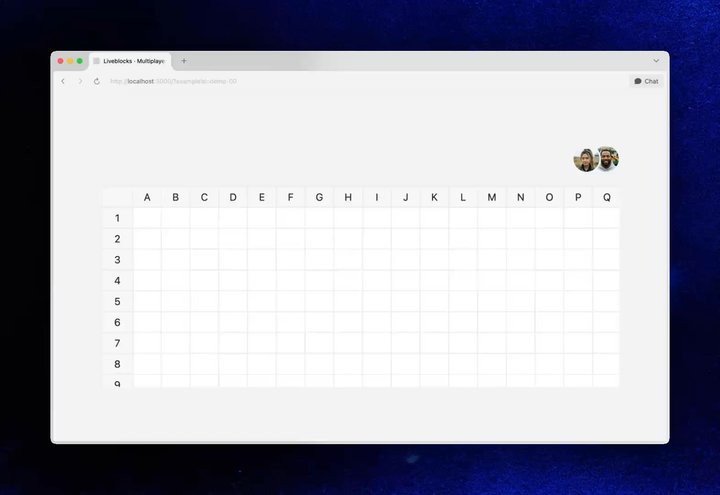
Multiplayer editing in the Multiplayer Handsontable example
Features
- Realtime collaboration: Synchronize rows, columns, and cell values between users.
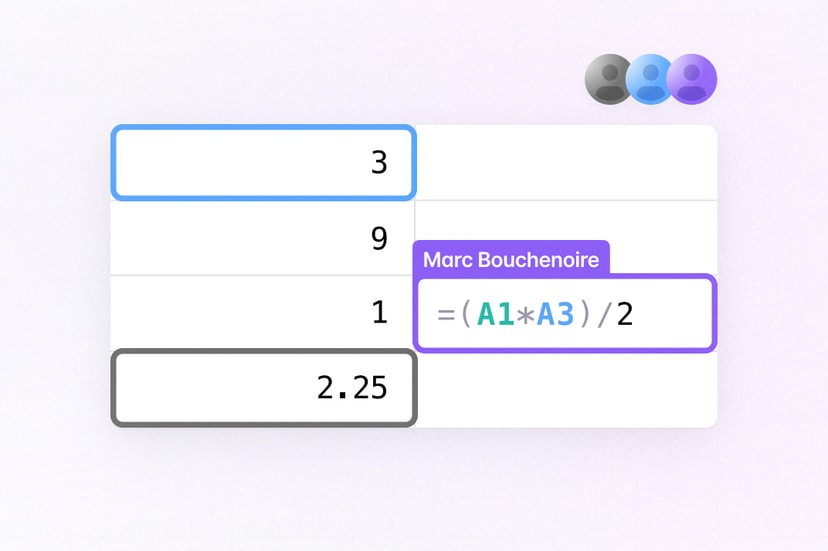
- Presence: Show live cell selections, avatar stacks, and agent activity.
- Server-side editing: Let trusted backend processes import and update records.
- Agentic editing: Let AI agents generate and apply validated table changes.
- Version history: Save, preview, and restore complete versions of the table.
- Multiplayer undo/redo: Give each user an independent history of their edits.
- File uploads: Store uploaded attachments in cells.
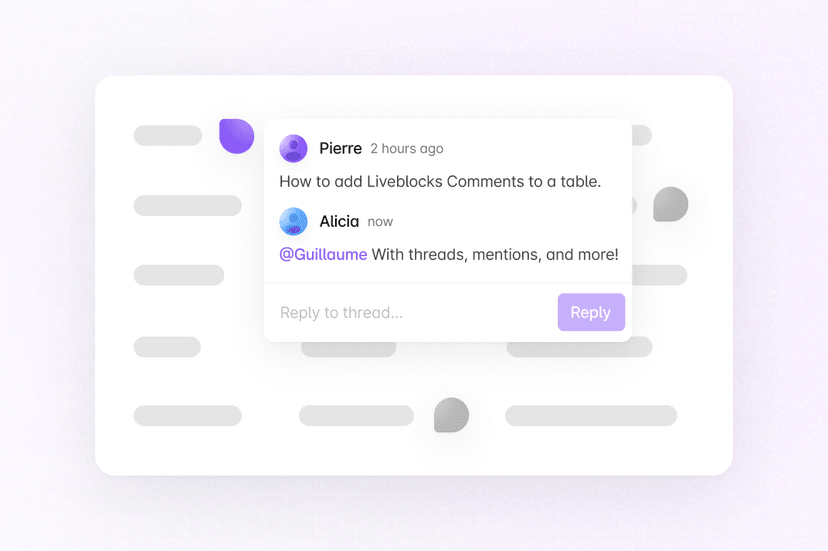
- Comments: Attach discussions to rows and cells.
- Permissions: Control who can view and edit the spreadsheet.
Get started
Choose the features you need for your spreadsheet. Each guide uses Next.js and can be combined with the others.
Implementation
This is an overview of how each feature can be implemented. Store permanent rows, columns, and cell values in Sync. Keep temporary selections and active cells in Presence. The snippets below build a custom table, but the same data model works when rendering with a grid library such as AG Grid or Handsontable.
Realtime collaboration
Store rows by stable ID in a
LiveMap, with each row a
LiveObject keyed by column
ID. Keep row and column order in
LiveList structures. Because
each cell is a separate property, two users editing different cells in the same
row merge cleanly, and sorting or reordering never conflicts with a cell edit.
Read the table with
useStorage and update it
with useMutation.
Liveblocks applies changes optimistically and resolves simultaneous edits for you. Read Storage to choose the right structure for each part of your table.
Presence
Use Presence for information that only matters
while someone is connected, such as their selected cell or the range they are
highlighting. Add
useUpdateMyPresence
to share a user’s selection and render other users’ selections with
useOthers, for example as a
colored outline around each user’s selected cell.
Learn more under Presence.
Server-side editing
Trusted server processes can edit the spreadsheet from the back end with
Liveblocks.mutateStorage,
for example to import records, sync a column with another system, or update a
status when something changes elsewhere. The server reads and writes the same
Sync data as connected users, so changes appear in realtime.
Learn more under Server-side editing.
Agentic editing
To allow AI agents to modify your spreadsheet, generate your changes with AI
then use mutateStorage
to apply them. To show that AI is working in your app use
setPresence
to show it working—your agent will appear in Presence alongside
humans. Finally, remove the agent’s presence to indicate that the agent is no
longer working.
Additionally, you can use Feeds to store AI workflow state, and to pass agent status updates to the UI. Learn more under Agentic editing.
Version history
Create versions before importing data, running a bulk update, or letting an
agent restructure the spreadsheet. Use
useHistoryVersions
to list versions,
useHistoryVersionStorageData
to build a read-only preview, and
useRestoreToStorageVersion
to restore the complete spreadsheet as one synchronized change.
Automatic versions can be enabled in the dashboard, and meaningful versions can
be created from your backend with
Liveblocks.createVersionHistorySnapshot.
Learn more under Version history.
Multiplayer undo/redo
Connect undo and redo to the spreadsheet toolbar with
useUndo,
useRedo,
useCanUndo, and
useCanRedo. Each user’s
history is independent, so undoing a cell edit does not reverse another
collaborator’s work. Because a mutation is one history entry, a paste or fill
that writes many cells becomes a single undo step.
Learn more under Multiplayer undo/redo.
File uploads
Attachment columns can hold images, documents, and other uploaded assets. Upload
with useUploadFile,
store the returned LiveFile in the
row’s cell, and resolve it for display with
useFileUrl.
Files are stored in the room, so the same permissions that protect the table protect its attachments.
Comments
Use Comments for discussions attached to the
spreadsheet. Store the stable row and column IDs in thread metadata so a thread
remains attached to its cell through sorting, filtering, and reordering. Filter
threads with useThreads and
create them with Composer.
The table Comments quickstart shows this pattern on a custom React table, and the AG Grid and Handsontable guides show how to render comment indicators through each library’s custom cell renderers.
Permissions
Each spreadsheet is contained inside a room in your Liveblocks app, and
permission groups can set access to the table. For example, your spreadsheet may
have an editor group and a viewer group. This can be set when modifying or
creating a room, for example with
Liveblocks.createRoom.
More complex controls can be set too, learn more under Permissions.
Examples
Explore complete examples that combine the features described above.