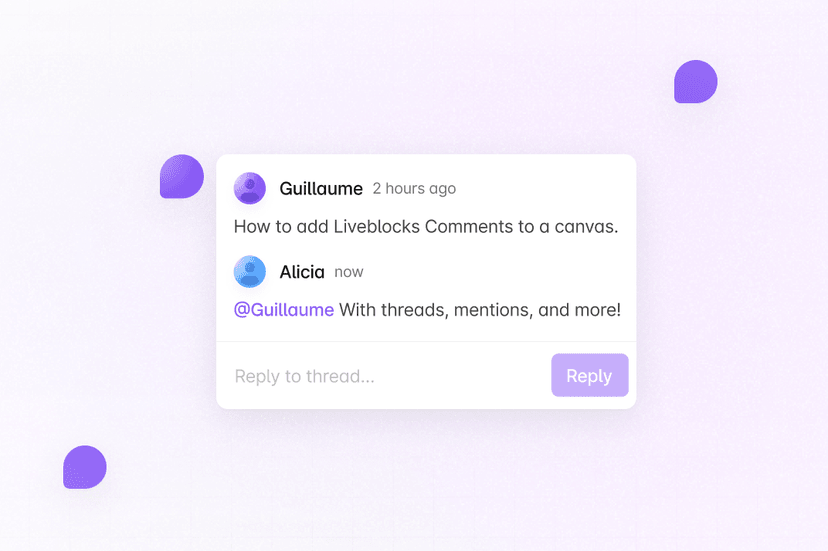
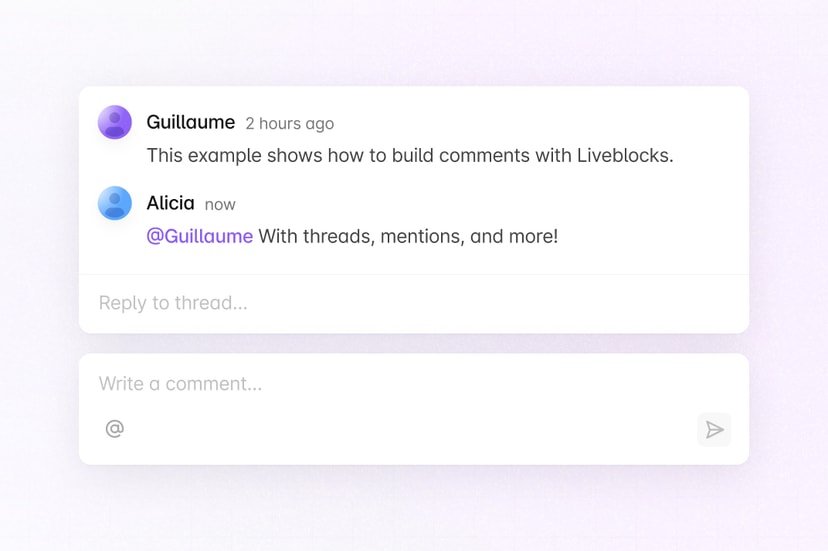
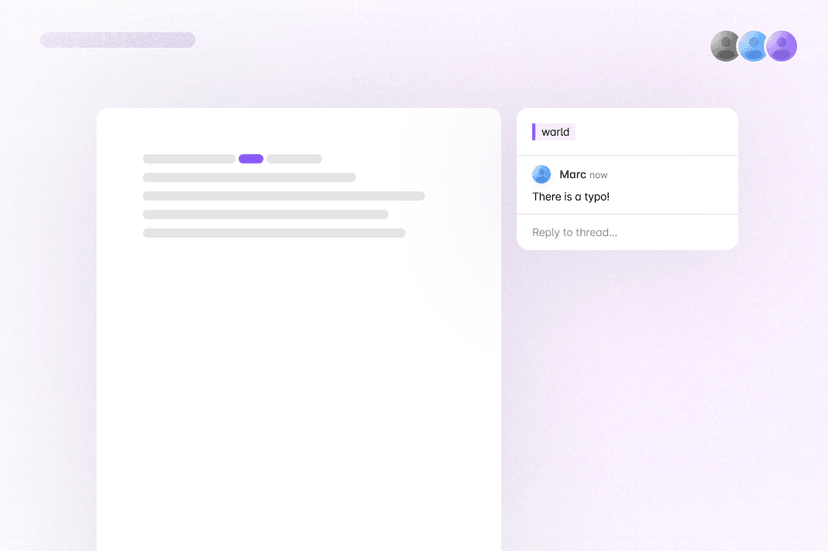
Get started with draggable comment pins using Liveblocks and Next.js
Liveblocks is a realtime collaboration infrastructure for building performant
collaborative experiences. Follow the following steps to start adding a
commenting experience to your Next.js /app directory application using the
hooks from @liveblocks/react and the
components from
@liveblocks/react-ui.
See the finished result in the Canvas Comments example.
Quickstart
Install Liveblocks and dnd-kit
Every Liveblocks package should use the same version.
TerminalInitialize the
liveblocks.config.tsfileWe can use this file later to define types for our application.
TerminalDefine thread metadata
Inside the new
liveblocks.config.tsfile, define the metadata shape for threads. Metadata is used to attach comment threads to X/Y coordinates on the canvas. In this guide, we’ll use simple X/Y pixel coordinates, measured from the top left of the page.liveblocks.config.tsImport default styles
The default components come with default styles, you can import them into the root layout of your app or directly into a CSS file with
@import.app/layout.tsxCreate a Liveblocks room
Liveblocks uses the concept of rooms, separate virtual spaces where people collaborate, and to create a realtime experience, multiple users must be connected to the same room. When using Next.js’
/approuter, we recommend creating your room in aRoom.tsxfile in the same directory as your current route.Set up a Liveblocks client with
LiveblocksProvider, join a room withRoomProvider, and useClientSideSuspenseto add a loading spinner to your app.app/Room.tsxCreate a hook for the canvas
Create a
hooks.tsfile containing auseMaxZIndexhook we'll use in the canvas component, helpful for setting thez-indexof comment pins, and preventing overlapping threads.app/hooks.tsCreate a draggable thread component
Create a
DraggableThread.tsxfile that displays a thread with draggable pin, usingFloatingThreadandCommentPin. Threads can be toggled open by clicking on the pin.app/DraggableThread.tsxCreate a button for placing threads
Create a
PlaceThreadButton.tsxfile that allows users to place a thread on the 2D canvas. Clicking the button changes the user’s cursor into a comment pin that can be placed down.app/PlaceThreadButton.tsxCreate the canvas
Now that the other components are built, we can create the component that displays the threads. Add
useThreadsto get the threads in the room, and place down aDraggableThreadfor each insideDndContext. When a thread is dropped, useuseEditThreadMetadatato update the thread’s metadata with the new X/Y coordinates.app/CommentsCanvas.tsxAdd the Liveblocks room to your page
To finish off, import your room into your
page.tsxfile, and place your collaborative app components inside it.app/page.tsxNext: authenticate and add your users
Comments is set up and working now on your canvas, but each user is anonymous—the next step is to authenticate each user as they connect, and attach their name and avatar to their comments.
Add your users to Comments
What to read next
Congratulations! You’ve set up the foundation to start building a commenting experience for your Next.js application.