Get started with a custom collaborative canvas using Liveblocks and Next.js
This guide shows you how to build a custom collaborative canvas in a Next.js
/app directory application. You will synchronize draggable boxes with
Storage, add multiplayer undo/redo, then show
live cursors and selections with presence.
Follow the Tldraw quickstart if you want a complete canvas renderer and editing toolkit instead of building the interactions yourself.
Quickstart
Install and initialize Liveblocks
Install
@liveblocks/clientand@liveblocks/react. Every Liveblocks package should use the same version.TerminalInitialize
liveblocks.config.ts, which will hold your application's collaborative types.TerminalDefine the canvas Storage types
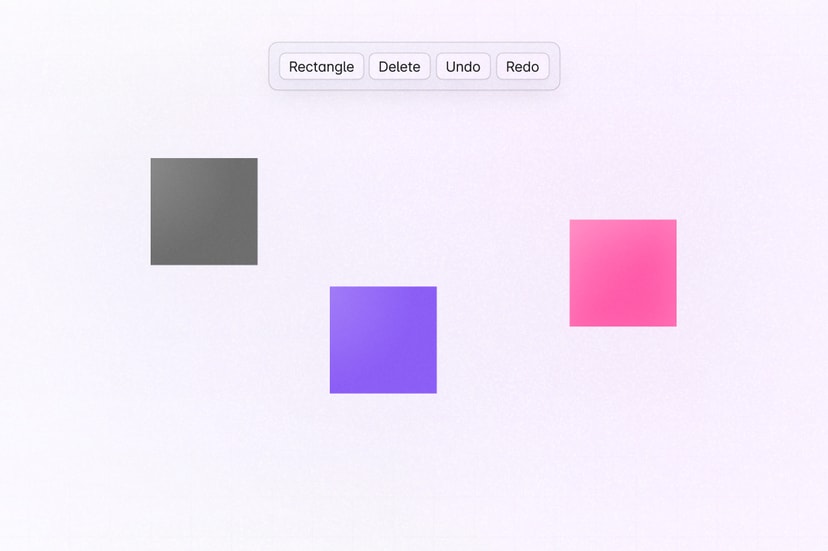
Each box has a position and fill color. Store the boxes in a
LiveMap, keyed by stable IDs, and make each box aLiveObjectso its properties can be updated independently.liveblocks.config.tsUse Storage for canvas data that must persist. Cursor and selection state will be added to presence in the final step.
Create a Liveblocks room
Liveblocks rooms are collaborative spaces where users work on the same data. Set up a
LiveblocksProvider, join a room withRoomProvider, and provide the initial boxes for a new room.app/Room.tsxThis guide uses a fixed room ID so everyone opening the page joins the same canvas. In a real application, derive a stable room ID from the document or project being opened.
Wrap your canvas page in the room.
app/page.tsxRender and select boxes
Read an immutable snapshot of the shared boxes with
useStorage. Keep the current selection in local React state for now. The effect clears the selection if another user deletes that box.app/Canvas.tsxOpen the page in two browser tabs. Both tabs render the same two boxes from the room's Storage document.
Add and delete boxes
Use
useMutationto modify the mutable Storage structures. Add these imports and mutations insideCanvas.app/Canvas.tsxAdd a toolbar before the canvas. A newly created box becomes the local selection, and deleting a box clears that selection.
app/Canvas.tsxStorage mutations are synchronized to every connected user and added to the current user's multiplayer history.
Drag boxes
Capture the pointer when a drag begins, remember the pointer's offset inside the box, and update Storage on every pointer movement. The mutation safely does nothing if another user deletes the box mid-drag.
app/Canvas.tsxConnect the handlers to the canvas and each box. Pointer capture keeps sending events while the pointer moves outside the selected box.
app/Canvas.tsxEach pointer move updates the box's
xandyproperties, so other connected users see the complete drag rather than only its final position.Add multiplayer undo and redo
Add history controls with
useUndo,useRedo,useCanUndo, anduseCanRedo.app/Canvas.tsxA drag generates many Storage mutations. Use
useHistoryto pause history after pointer capture and resume it when the gesture ends, making the complete drag one undo step. Route every termination event through the same idempotent function, and use it during cleanup so history cannot remain paused if the component unmounts mid-drag.app/Canvas.tsxReplace the three end-event handlers on the canvas with
finishDrag.app/Canvas.tsxEach user's history contains their own changes. Undoing your drag does not reverse a change made by another collaborator.
Add live cursors and selections with presence
Finish the canvas by moving the current selection from local React state into presence and adding cursor coordinates. Presence is temporary, per-connection state, so it is not saved in the canvas document.
First, add the presence type to
liveblocks.config.ts.liveblocks.config.tsSet the initial presence values when entering the room.
app/Room.tsxIn
Canvas, remove theselectedShapeIduseStatecall and the now unuseduseStateimport. Read your own selection withuseSelf, update it withuseUpdateMyPresence, and read collaborators withuseOthers.app/Canvas.tsxReplace every local selection update with
selectShape. This keeps add, delete, drag, and canvas-background selections visible to other users.app/Canvas.tsxPublish canvas-relative cursor coordinates while preserving the existing drag handler. Clear the cursor when it leaves the canvas.
app/Canvas.tsxFinally, show when another user has selected a box and render their cursor. Keep the current user's selection blue and use purple for other users.
app/Canvas.tsxOpen the canvas in two tabs. Boxes now move continuously in both tabs, each drag is one undo step, and each tab shows the other user's cursor and selection.
What to read next
Congratulations! You’ve built the foundation of a custom multiplayer canvas for your Next.js application.